 ClickToDoc
 vs Tango
A free Tango alternative with no limit on guides.
Tango turns a process into a how-to guide in minutes. So does ClickToDoc, except the guides live on your computer, there is no cap on how many you make, and exporting them costs nothing.
- No account
- Nothing uploaded
- Free, every export
How it works
- Record. Press Record and do the task the way you always do. Every click becomes a step with a screenshot, an outline around what you clicked and a title like "Click Save changes". Typing is captured too, with passwords masked.
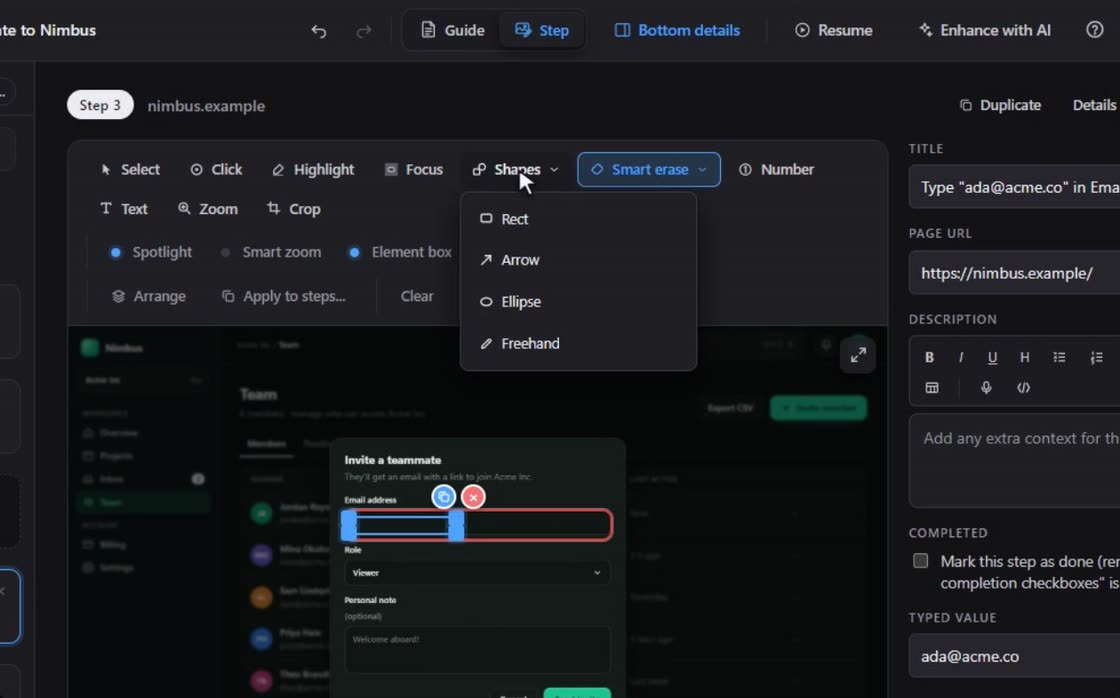
- Tidy up (optional). Edit the guide like a document: rewrite titles, add notes and headings, draw arrows and boxes, erase or blur anything private, merge or reorder steps.
- Export. Word, PDF, HTML, Markdown, an animated GIF or an MP4 video, or copy the guide straight into an email, Confluence or Notion. Every format is free.
ClickToDoc and Tango, side by side
| Feature | Tango, free plan | ClickToDoc |
|---|---|---|
| How many guides | Up to 5 in the team library | Unlimited |
| Account needed | Yes | No |
| Export to PDF, HTML, Markdown | Not on the free plan | Free, plus Word, GIF and MP4 |
| Record desktop apps | Not on the free plan | Free Windows app |
| Blur and redaction | Not on the free plan | Smart redact, blur, erase |
| Paid plans | From $15 a user a month (billed yearly) | None needed |
Tango figures from tango.ai/pricing, checked on 8 November 2026. Plans change; check there for the latest.
Where Tango is the better fit
Tango is a hosted service: guides live in a shared team library, open from a link, and can guide people inside the app they are using. If you need that live, in-app guidance and viewer insights, Tango does things ClickToDoc does not. ClickToDoc makes the guide itself, as a document you own.
What you get with ClickToDoc
- A full screenshot editor. Arrows, boxes, numbered markers, text, highlights, focus and zoom, plus smart erase that removes text as if it was never there.
- Private by default. Smart redact covers emails, phone numbers and other details while you record. Nothing is uploaded.
- Documents that look like yours. Word templates you design yourself, a designed PDF, and an HTML export with a table of contents.
- Optional AI, your choice. Tidy titles and descriptions with the AI provider you pick, or a local model, so nothing leaves your machine.
Questions
Is there a limit on how many guides I can make?
No. Guides are stored in your browser on your computer, so there is no workflow cap.
Can my whole team use it?
Yes. Everyone installs it for free and shares guides as files (Word, PDF, HTML) or as a workflow file others can open and edit.
Can I make guides for desktop software, not just websites?
Yes, with the free Windows app from the Microsoft Store. It records clicks in any application you can click.
Does it need the internet?
No. Recording, editing and exporting all work offline.
Try it on your next task.
Free on the Chrome Web Store and Edge Add-ons, and the Windows app is on the Microsoft Store.